How to Extract Data from a Website to Excel (No Code)
How to Extract Data from a Website to Excel — No Code (2026 Guide)
- So, what's the easiest way to scrape data into an Excel? In my opinion it should be something like describing what you want in plain language = prompt, run this tool and download the result as Excel, CSV, or JSON.
And Parsera has three tools for making this happen:
- For a single page, URL Extractor is the fastest option.
- For full catalogs or paginated sites, use the Scraping Agent for one-time extraction
- Or use it to generate Scraping API for recurring extraction at scale.
By Vitalii Oren — May 13, 2026
TL;DR 💬
- URL Extractor — fast and simple. paste a URL, describe what you want, download as Excel in under 5 minutes. Extracts data from a specific URL.
- Scraping Agent — powerful and flexible. paste a starting URL and a prompt. The Agent navigates the website, handles all pagination types, clicks dropdowns, and returns a full structured dataset.
- Scraping API — most efficient at scale. Code generated by the Agent based on specific scraping scenario and for a specific page structure. Best for recurring extraction from the same website.
- All three are fully no-code and export directly to Excel, CSV, or JSON.
What This Article Covers ⁉️
- How do I extract data from a webpage to Excel — step by step?
- How do I scrape complex websites with pagination, hidden fields, or dropdowns?
- How do I run recurring extraction at scale without AI cost / How I can generate custom Scraping API?
- What are the most common use cases for extracting website data to Excel?
- Which Parsera tool is cheapest, and by how much?
- How do I integrate Parsera with n8n, Make, Zapier, or my own pipeline?
Part 1: How to Extract Data from a Website to Excel with URL Extractor 📦
Best for: you have one or more URLs and the data is visible on the page.
🐾 Overview: Steps to Extract Website Data to Excel
- Input — enter the URL or URLs into Parsera
- Describe — describe the data you want using plain text
- Extract — run the extraction and review the results
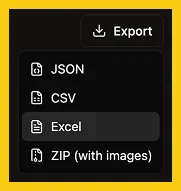
- Download — export as Excel, CSV, JSON, or ZIP
Step #1: Enter the Website URL
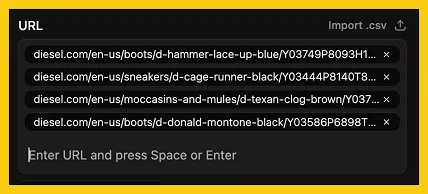
Paste any number of page URLs directly into the URL field or upload a file containing your links (Parsera will automatically extract URLs, remove duplicates, and prepare them for extraction)
You can paste and extract data from hundreds of thousands of pages in one run.
Step #2: Describe the Data You Want to Extract
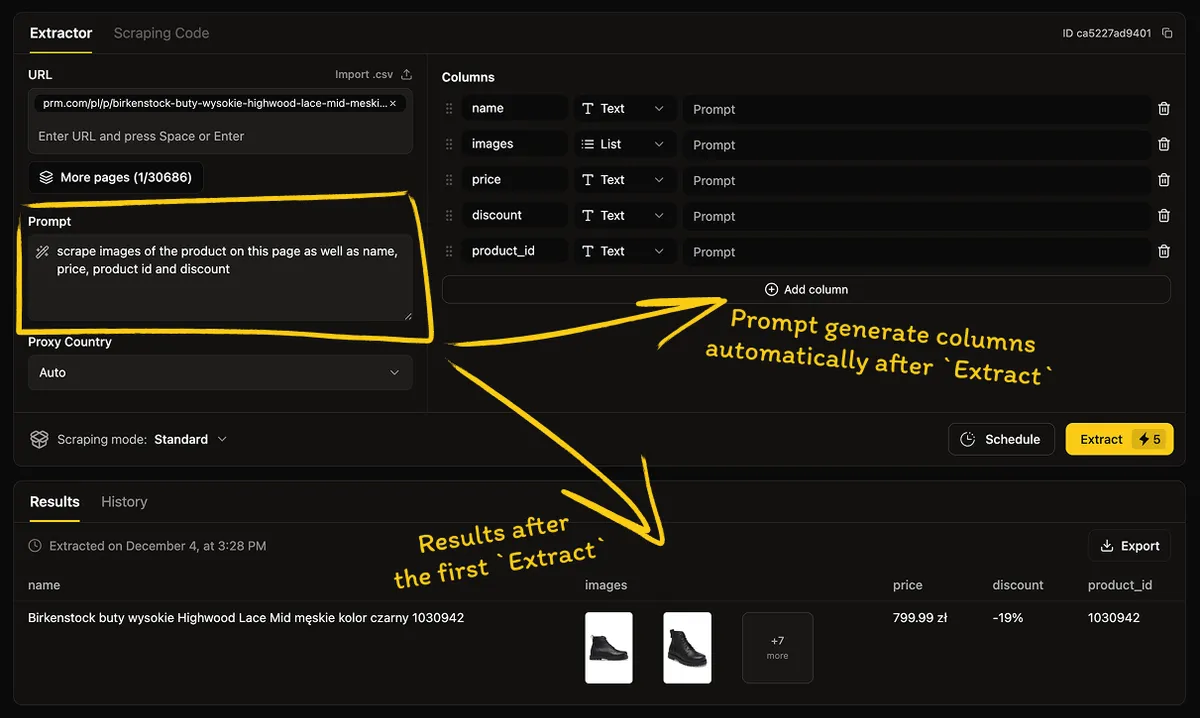
💬 Option 1: Use Prompt
Describe in plain language what to extract. The more specific your prompt, the better the results.
Examples:
- E-commerce: "Extract product title, price, images, and description"
- News articles: "Extract all quotes, the authors, and the context of every quote"
- Real estate: "Extract title, address, and price per square meter"
- Contact details: "Extract company email, phone number, address, and social media links"
📊 Option 2: Set Up Columns
Use Columns for full control over the structure of your output — especially for multi-URL extraction or Excel-ready consistent data.
Note: if you want to extract data from multiple URLs, set up column structure before extracting.
How to set up columns:
- Create a column for each data point you want to extract
- Name it clearly — e.g.
title,price,image_url,description,address - Add a column prompt (optional) — a short instruction for accuracy, e.g. "Extract the sale price, or the regular price if no sale is available"
Step #3: Extract Data and Download to Excel
- Click Extract and wait for Parsera to process the page(s)
- Review the result and tune them if needed.
- Download your file in the format you need: Excel, CSV, JSON, and ZIP (if extracting images)
Part 2: How to Extract Data to Excel from Complex Websites Using Scraping Agent 🤖
Best for: websites with pagination, hidden fields, dropdowns, search bars, dynamic content — or when you don't have a list of URLs yet.
👀 What is Scraping Agent?
Sometimes the data you need is not immediately visible. It might be hidden behind buttons, filters, search fields, expandable product specs, or spread across dozens of paginated pages.
Scraping Agent handles these scenarios. Instead of reading a single URL you provide, the Agent navigates the whole websites and do any actions required to complete dataset:
- Navigates from a starting URL — no need to provide individual page URLs
- Handles all pagination types — numbered pages, "Load More" buttons, infinite scroll
- Visits product/detail pages automatically when needed
- Clicks buttons, expands dropdowns, interacts with any UI element to reveal hidden data
- Applies filters and fills search bars before extracting
- Returns a clean structured dataset — ready for Excel export
🚀 Step-by-Step Guide: How to Extract Data Using Scraping Agent
For a full walkthrough of the Agent in action — including a real e-commerce case with pagination, dropdown clicks, and hidden field extraction — see How to Scrape Prices from a Website.
Step #1: Enter the URL and Write Your Prompt

- Paste the starting URL — this can be a catalog or category page, company website or search results page
- Then write a prompt describing what you want.
- Be specific:
For e-commerce catalog:
"Extract product name, URL, regular price, sale price, and product image from all pages in this catalog."
For company website:
"Visit this company website and extract services, pricing, business hours, contact email, phone, and address."
For search-based scraping:
"Type 'data analyst' into the search field, press Enter, and extract all job titles, companies, locations, salaries, and job URLs from the results."
Step #2: Review and Refine the Results
Once the Agent completes the run:
- Review the output — check that all fields are populated correctly
- Refine if needed — use follow up chat message to add fields, remove columns, or re-extract specific data
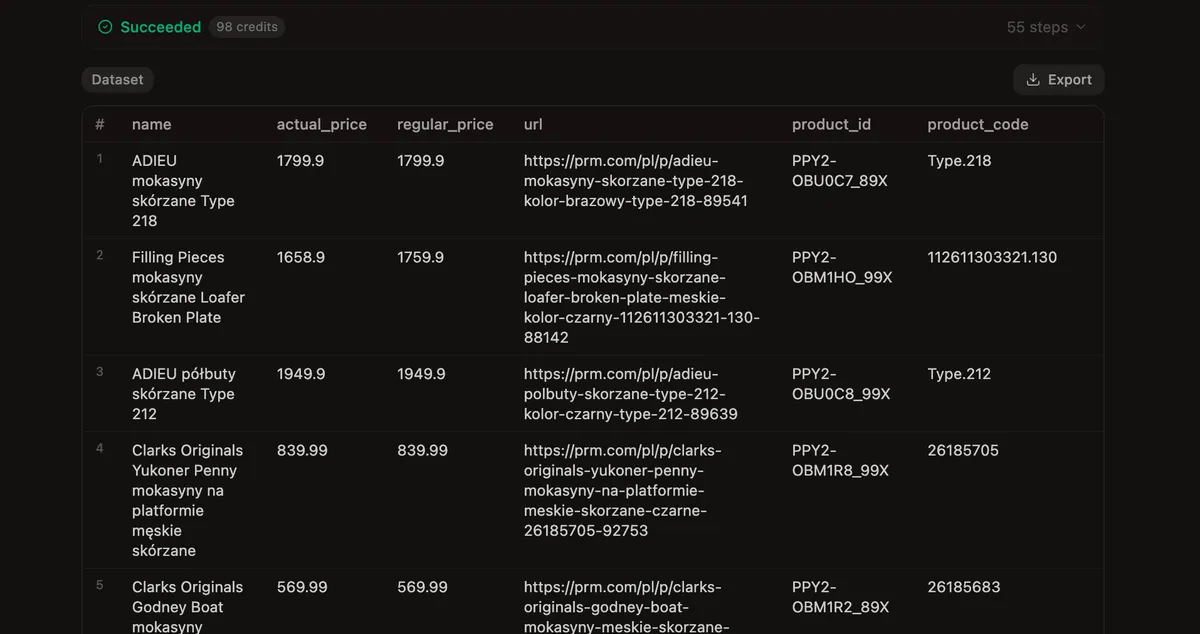
Step #3: Export to Excel, CSV, or JSON
Once you're satisfied with the output, download the data in the format you need — Excel, CSV, or JSON.
Part 3: How to Extract Data at Scale Using Scraping API 🛰️
Best for: you've already validated your scraping setup with the Agent and want to run it repeatedly on the same website.
🔎 What is Scraping API?
Scraping API is code generated by the Scraping Agent for a specific page structure. It replicates every step of your original Agent run — navigation, pagination, clicks, field extraction — but executes as pure code, without an AI model or external browser on every call.
This means:
- Same output as the Agent — same fields, same structure, same navigation logic
- No AI cost per run — code runs directly, not through an LLM
- Much faster and much cheaper — ~1 credit per 185 products vs. ~65 credits with the Agent
- Fixed, predictable cost — unlike the Agent, whose cost varies by website complexity
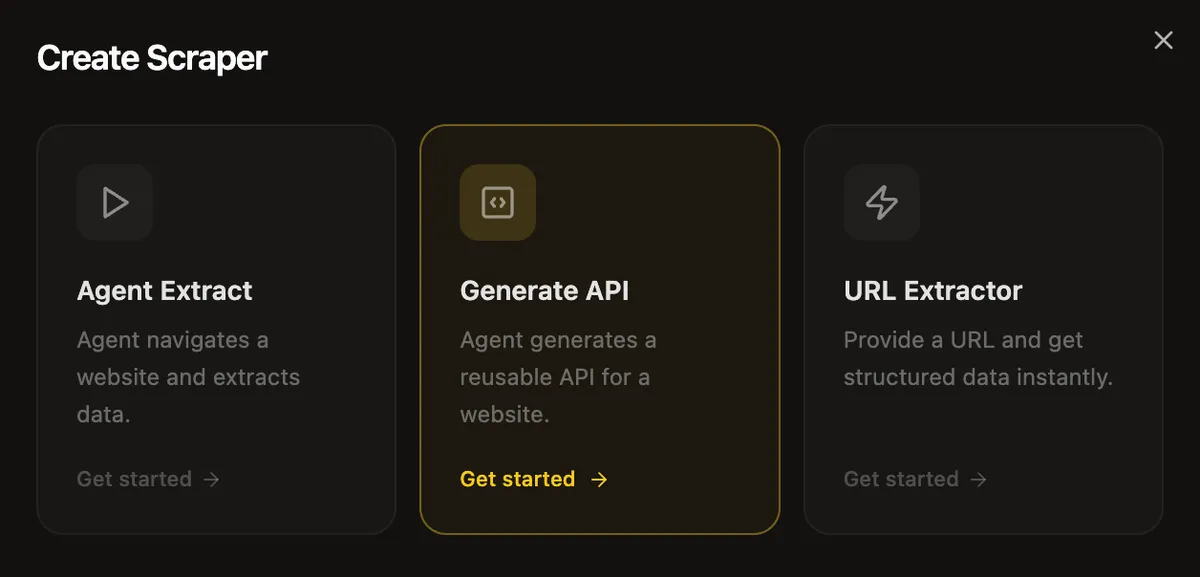
💭 When to generate a Custom Scraping API:
- You plan to scrape the same website repeatedly (daily, weekly, monthly)
- You need to extract data from hundreds or thousands of pages with the same structure
- E-commerce price monitoring, real estate availability, job board exports, directory scraping
🛠️ How to generate a Custom Scraping API:
- Run a successful extraction with Scraping Agent
- Click "Generate Scraping API" — the Agent writes code replicating your entire prompt
- Get your API key, run your API and get results as Excel, CSV, or JSON as usual
See the How to Scrape Prices from a Website guide for a real example of Agent + Scraping API used together for e-commerce catalog extraction.
📋 Common Use Cases: What People Extract to Excel
E-commerce prices and product data — price monitoring across competitor catalogs, product name, SKU, availability, and images. Use the Extractor for known product URLs or the Agent for full catalog navigation with pagination.
Real estate listings — address, price, square footage, listing date, and agent contact. The Agent handles paginated listing pages automatically; the Scraping API makes daily availability updates affordable.
Job postings — title, company, location, salary, requirements, and job URL. Extract from a full job board with the Agent, or feed individual job URLs to the Extractor for fast structured output.
Contact lists and business directories — company name, email, phone, address, social links. Paste a list of company URLs into the Extractor and get a clean spreadsheet in minutes.
News and research — article titles, authors, publication dates, quotes, and summaries. Useful for media monitoring, competitive intelligence, and market research.
💰 Cost Comparison: Which Tool Should I Use to Export Website Data to Excel?
Quick answer: Extractor = 5 cr/product page · Agent = ~65 cr/185 products · Scraping API = ~1 cr/185 products
Real use case: 185 products across 3 catalog pages
| 🗃️ URL Extractor | 🤖 Scraping Agent | ⚡ Scraping API | |
|---|---|---|---|
| Credits needed | 925 cr (185 pages × 5 cr) | 65 cr (actual result) | 41 cr first · 1 cr recurring |
| $29 plan | ~$7.68 | ~$0.54 | ~$0.34 first · ~$0.008 recurring |
| $59 plan | ~$5.46 | ~$0.38 | ~$0.24 first · ~$0.006 recurring |
| $169 plan | ~$4.44 | ~$0.31 | ~$0.20 first · ~$0.005 recurring |
For 185 products, the URL Extractor costs ~$7.68 on the $29 plan, the Scraping Agent costs ~$0.54, and the Scraping API drops to under $0.01 per recurring run — making it the only practical option for ongoing extraction. Check more Cost Comparison data here
⚠️ Note: the Agent's cost varies depending on website complexity and which extraction method it chooses internally. The 65 cr figure is from one real test — treat it as a ballpark.
🔗 Integrations: Use Parsera with Automation Platforms and APIs
All three Parsera tools — URL Extractor, Scraping Agent, and Scraping API — can be integrated into your existing workflows:
Automation Platforms
Parsera is available as a native node on n8n, Make, and Zapier — no coding required. Use a Schedule Trigger to automatically extract website data to Excel on any cadence.
Parsera API
Access all three tools programmatically via the Parsera API. Create and call as many Agents or Extractors as you need — ideal for teams that want to pipe website data directly into their own dashboards, databases, or pipelines.
Custom API Pipeline
For enterprise or highly specialized scraping needs, Parsera can train an Agent for your specific use case and build a dedicated API endpoint — so you get clean, structured data delivered exactly how you need it, without managing any infrastructure. Email us or book a call to discuss your case.
➡️ Conclusion
- Extracting data from a website to Excel used to mean hiring a developer and with Parsera, it's a prompt and a download button.
- The flow is very simple, figure out what data and their volume you need and then pick a relevant tool: Scraping Agent, Scraping API OR AI Extractor.
- All three tools export directly to Excel, CSV, JSON, or ZIP — and all three can be scheduled, automated, or connected to your existing workflows via n8n, Make, Zapier, or the Parsera API.
🌻 FAQ
-
Do I need technical skills to extract data from a website to Excel? No. Parsera is fully no-code. You only need a URL and a plain-language description of the data you want.
-
What are the three Parsera tools for extracting website data to Excel? URL Extractor (5 cr/page, fast, for known URLs), Scraping Agent (~65 cr/185 products, navigates full websites with pagination and hidden data), and Scraping API (~1 cr/185 products recurring, code generated by the Agent for repeated extraction at scale). All three export to Excel, CSV, or JSON.
-
What's the difference between URL Extractor, Scraping Agent, and Scraping API? The Extractor reads a URL you provide and returns data from that page. The Agent navigates from a starting URL — handling pagination, clicking elements, visiting product pages. The Scraping API is code generated from an Agent run — it does everything the Agent does but runs without AI, making it far cheaper for recurring large-scale extraction.
-
How do I extract data from multiple pages into one Excel file? Paste multiple URLs, upload a URL file, use the Page Catalogue, or use the Scraping Agent to navigate paginated catalogs automatically — results are merged into a single download.
-
How do I scrape a paginated website or a site with "Load More" buttons to Excel? Use the Scraping Agent. It handles numbered pagination, infinite scroll, and "Load More" buttons — all automatically, without any extra configuration.
-
Can I extract data that only appear after clicking a button or dropdown? Yes. Describe the interaction in your prompt — e.g. "click the size dropdown to reveal product_id" — and the Agent performs it before extracting.
-
How do I automatically extract website data to Excel on a schedule? Set a schedule (daily, weekly, monthly) after completing your first extraction. Parsera runs it automatically and stores results in the History tab — download your Excel file any time.
-
Can I generate a custom Scraping API for recurring large-scale extraction? Yes. After a successful Agent run, click "Generate Scraping API" to create reusable code for that page structure. Future runs cost a fraction of the original — ideal for price monitoring, inventory tracking, or any recurring scraping job.
-
How do I scrape product prices from a website into Excel? Use the Extractor for individual product URLs, or the Agent for full catalog scraping with pagination. Add a prompt like "extract regular price and sale price" or create dedicated columns. See the full guide: How to Scrape Prices from a Website.
-
How do I extract images from a website? Use a prompt like "extract the main product image URL" and Parsera will return the image URLs in your dataset. Export as ZIP if you want the image files included. See: How to Scrape Images from a Website.
-
What export formats are available? Excel, CSV, JSON, and ZIP (for datasets that include images or files).